
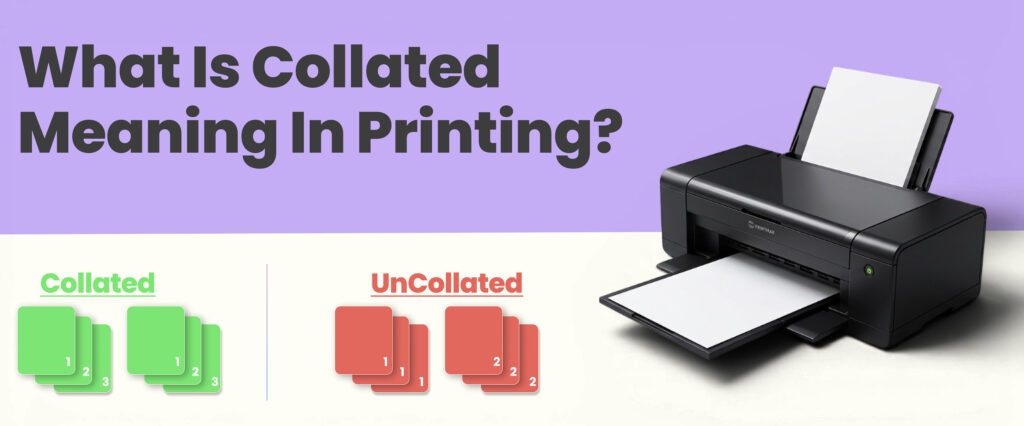
When printing multiple copies of a document you may see collate in the print option. Collate means arranging pages in correct numerical order for each copy of document. It determines the order when more than one copy of a multi page document is requested.
In this, we’ll explain what does collate mean in printing. Their benefits, issues and when to use in printing for faster and efficient printing.
Define Collated In Printing
Collate meaning in printing is organizing documents in sequential order. While printing multiple copies of document with collation on then printer finishes one complete copy from start to end before starting the next copy.
Example
For printing three copies of a four page report: If collate option is on, then the printer will print first pages 1, 2, 3 and 4 for the first copy. Then repeat the process for second and third copies. As a result, each report comes as a ready to use set.
Why Do We Use Collate In Printing?
Collate option in printer is used to automatically arrange the multiple page document into the correct ordered set rather than grouping all matching pages together. This removes the need to sort pages after printing.
It is useful when printing multiple copies of reports, presentations and manuals.
What Is Collated And Uncollated In Printing?
While printing multiple copies of multi page document printers offers two options, collated and uncollated. This determines how pages are arranged after they come out of the printer.
Collated meaning in printing paper arranging each copy of a document in sequence before the next copy.
Uncollated printing means print the same pages together. This pattern prints all copies of page 1 then 2 and so on.
Key Differences
| Features | Collated Printing | Uncollated Printing |
| Page Order | Print document sets in sequence | Print identical pages together |
| Arrangement | Automatically sorted after printing | Must be manually arranged after printing |
| Efficiency | Save time and less manual work | More time for sorting |
| Best For | Reports, Presentations and Manuals | Documents where pages can assemble later or Posters |
Which Option Should You Choose?
The best option depends on printing needs. Choose collated printing for multi page documents because it prints each copy in sequential order.
And select uncollated printing for single sheets or when you plan to order the sheets after printing.
When Should You Use Collate?
You should use collate when you are printing a number of copies of a multi page document and want each copy printed as ready to use set. This is useful when you have a need for immediate use of a copy after printing .
Collate printing example: if you have to print 20 copies of a 10 pages report. Then enable collate which ensures the arrangement of these pages in correct order for each copy and printed as a complete ordered set. This reduces errors and manages large prints.
How To Enable Or Disable Collate On Printer?
Most printers enable or disable collate directly from the print dialog box of settings menu and set as your preference in the system. This may vary for printing models but generally the process is easy and simple.
Here is how to do it on Windows and Mac settings.
On Window Computers
For Single Print:
- Open the document for print and press Ctrl+P for the print menu.
- Look for collate or collated option in print setting of window
- Select collate to enable the collate printing for correct order.
- Choose uncollated to disable the collate printing for same pages together,
- Select print to start printing.
For Default:
- Open the window setting and search for printers and scanners
- Select the printer and open the manage
- Open printing preferences
- Look for collate and on to enable as default
- Select off to set uncollated printing as default.
On Mac Computers
For Single Print:
- Open the document for printing and press Command + P
- If the print window is small then click show details to expand the options.
- Search copies and drop the menu in the center of the panel.
- Check collate pages to enable collate printing.
- Uncheck collate pages to disable the collate printing.
- Click print for printing.
For Default:
- Open the apple menu and click the system settings.
- Click printers and scanners.
- Open options and find the collate settings.
- Enable collate to make collate printing by default.
- Disable collate to make uncollated printing the default setting.
Collate Vs. Group Printing
When printing a document, collate and group printing decides how pages are arranged.
Collate printing arranges pages in a sequence order.
Group printing is also known as uncollated printing and arranges the same pages together.
Benefits Of Using Collate
Collate printing offers several benefits for managing multi page printing tasks more accurately.
- Saves Time: Collated printing automatically arrange pages into complete sets reducing the need of sorting pages manually after printing.
- Improve Accuracy: It lessens the risk of missing pages and incorrect order.
- Increases Efficiency: Large numbers of prints become easier and easy to handle because each copy is ready to use.
Common Printing Errors Related To Collation
Although collate printing helps in many ways, users sometimes may experience problems due to incorrect settings and software issues. These errors can affect how pages are arranged.
Collate Printing Not Working
Sometimes collate features may not function properly due to incorrect settings and outdated drivers. Check the preferences and ensure the collate option is enabled.
Pages Printed Out Of Order
Pages may print in the wrong sequence if collated printed is not applied correctly.
Collated Copies Not Separating
Documents may print as grouped pages instead of a complete document set which requires manual arrangement after sorting.
Conclusion
Collate is a simple but helpful feature that arranges multiple documents in a complete set. It saves time, reduces manual arrangement and increases the accuracy of printed materials.
Understanding what does collate means in printing? This feature allows users to choose the right print settings and achieve better results with every print job. For more tips on printing and packaging, explore the sources available at Pack Custom Boxes.
FAQ,s
No, collate and double sided printing are two different types. Collate printing only controls the arrangement of pages while double sided refers to both sides of printing on sheet.
When printing 2 copies, collate means the printer prints each copy as a complete set of pages in correct order.
Collate is good for large printing because it saves time and improves efficiency.
Yes, it is better to collate when printing the multi-page document.
It depends on the task. Collating is better for presentations,catalogs and booklets.
Collate in printing pdf means printing copies of the pdf into a complete set instead of identical pages together.
Collate in printing means arranging pages in sequential order.
Collate sheets means organizing printed pages in the correct sequence so that each copy of a document is printed as an ordered set.